How to Set Up a Personal Kanban Board for Your Task Manager
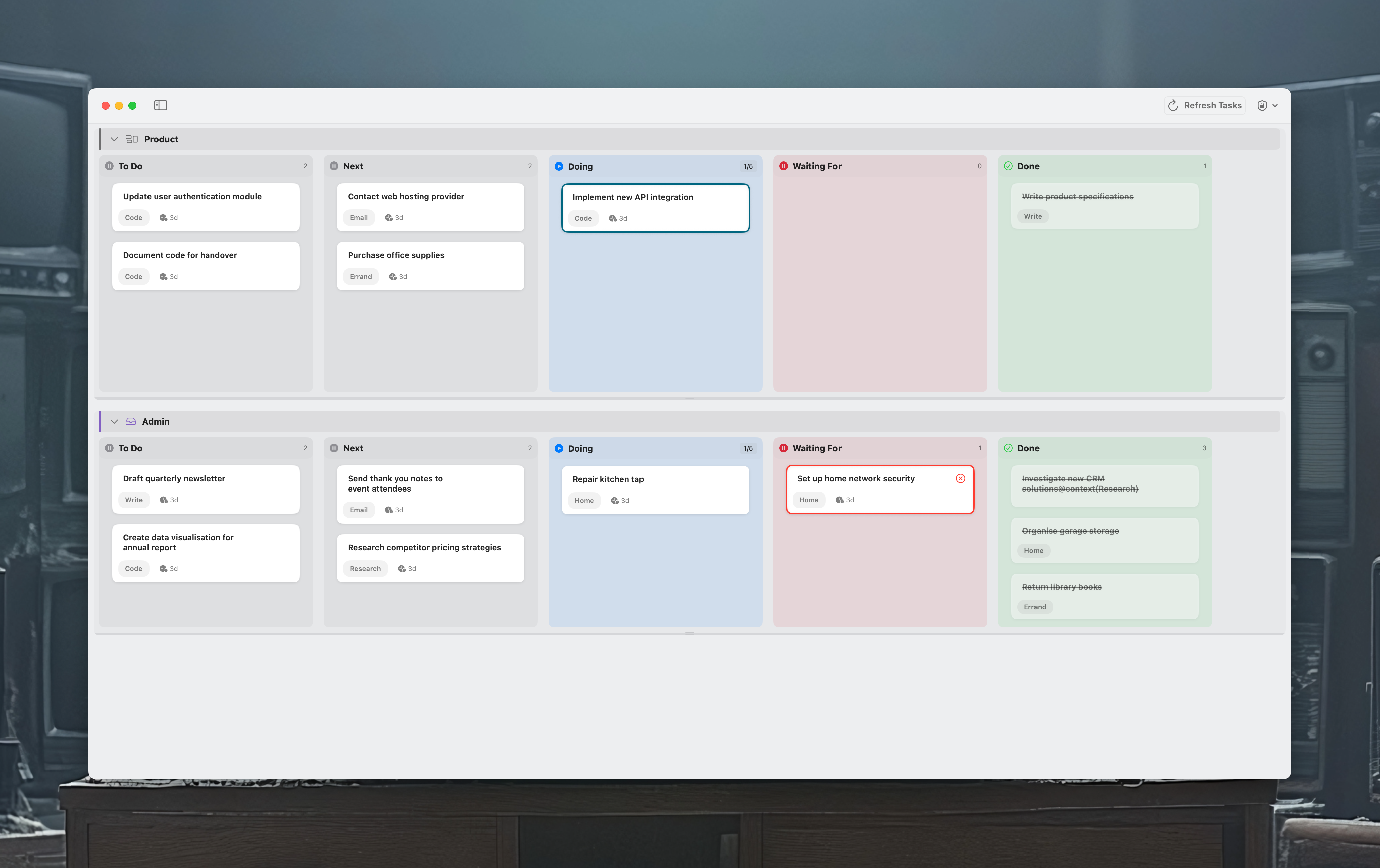
Your task manager is good at holding tasks. But it's not great at showing you how you the complete picture of your work: what's stuck, what's in progress and how much you've really taken on. A personal kanban board gives you that view and setting one up takes minutes when you use Flowcus with the task manager you already have.
This guide walks you through setting up a kanban board for OmniFocus, Things, or Todoist — choosing your columns, organising by project and getting the most from the visual workflow.
What is personal kanban?
Personal Kanban is a simple system borrowed from manufacturing. You visualise your work on a board divided into columns that represent stages (for instance, "To Do," "Doing" and "Done") and move the work from column to column as you make progress. The key insight is limiting how much you allow yourself to work on at once. Instead of a growing list that encourages you to start everything, a kanban board encourages you to finish things.
It works because it makes three things visible that flat lists hide: where your tasks are in your process, which ones have stalled and whether you've taken on too much.
Choosing your columns
Start simple. Flowcus comes with three columns to get you started:
- To Do — tasks you've committed to doing soon
- Doing — tasks you're actively working on right now
- Done — finished work (satisfying to see pile up)
Consider adding columns for other stages in your workflow:
- Waiting On — tasks you've delegated to someone else
- This Week — a curated shortlist from your full backlog
- In Review — tasks that need a second look before you call them done
The right columns mirror how you actually take on and complete work. There's no universal setup — pay attention to where tasks tend to get stuck and create a column for that stage.
You can map tags from your task manager to Flowcus columns.
Setting up swimlanes for projects or contexts
Columns show where tasks are. Swimlanes show what kind of work they belong to. Each swimlane is a horizontal row that groups tasks by project, area, or context.
For example, you might have swimlanes for:
- Individual projects — "Website Redesign," "Q2 Planning," "Side Project"
- Areas of responsibility — "Work," "Personal," "Freelance"
- Contexts — "At Computer," "Errands," "Calls"
Swimlanes stop your board from becoming a wall of cards. They let you scan a specific area of your life and see its status at a glance, without losing sight of the whole picture.
Flowcus comes with 1 swimlane initially but you can add more depending on your set up. Flowcus can also route tasks to swimlanes based on your task manager's folder or area structures so that you don't need to manually rearrange tasks.
Connecting your task manager
Flowcus works with the task manager you already use. Here's what the board looks like for each one.
OmniFocus
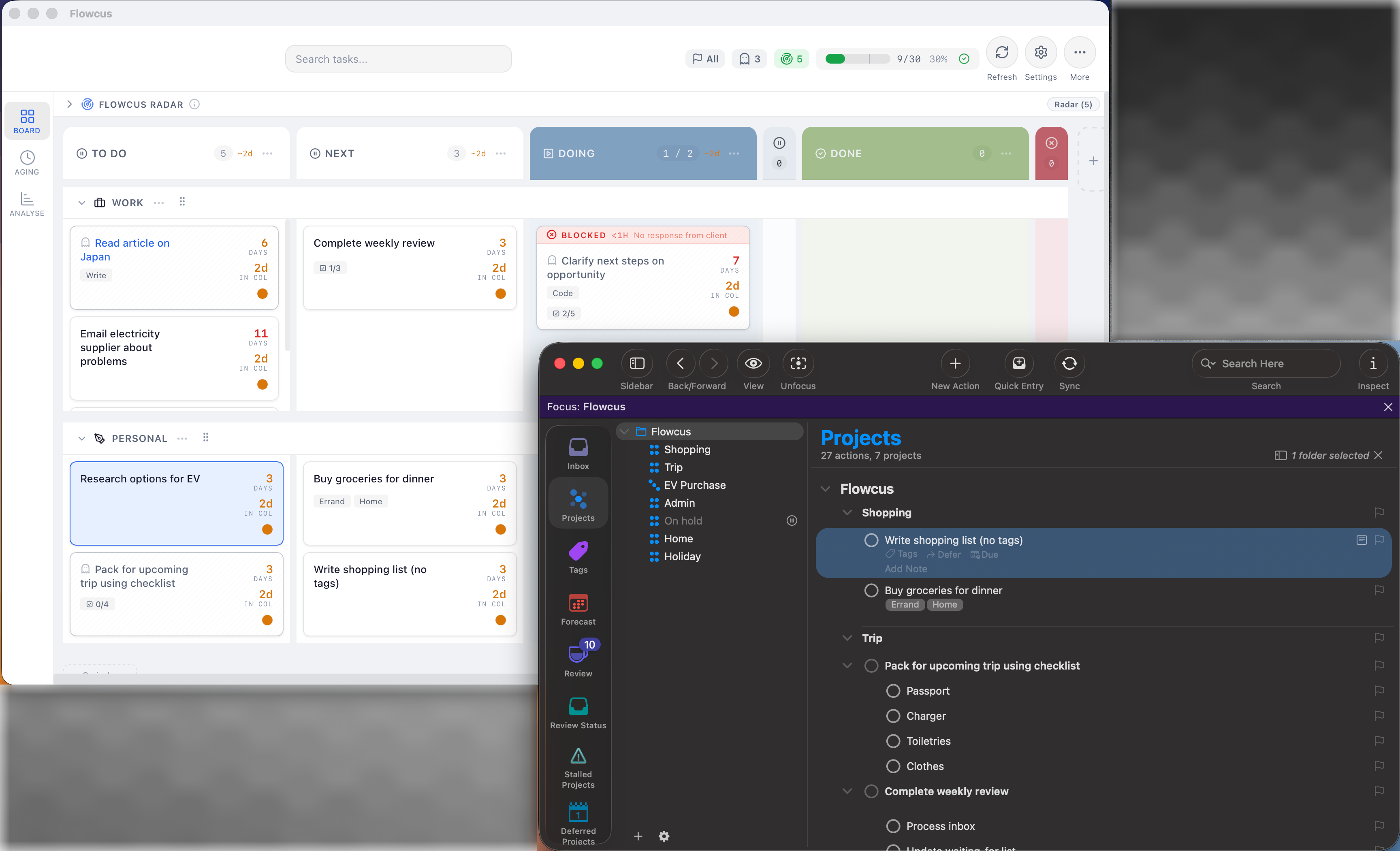
Flowcus can map tasks from your OmniFocus folders into swimlanes and optionally tags to board columns. Flagged items, due dates and tags all carry over, so you don't lose any of the structure you've built. Mapping tags to columns is entirely optional — Flowcus works out of the box without any tag configuration.
If you use OmniFocus perspectives to filter your work, think of the kanban board as a complementary view — perspectives show you what to do next, while the board shows you how much is in flight and where things stand across all your projects.
Learn more about OmniFocus + Flowcus →
Things
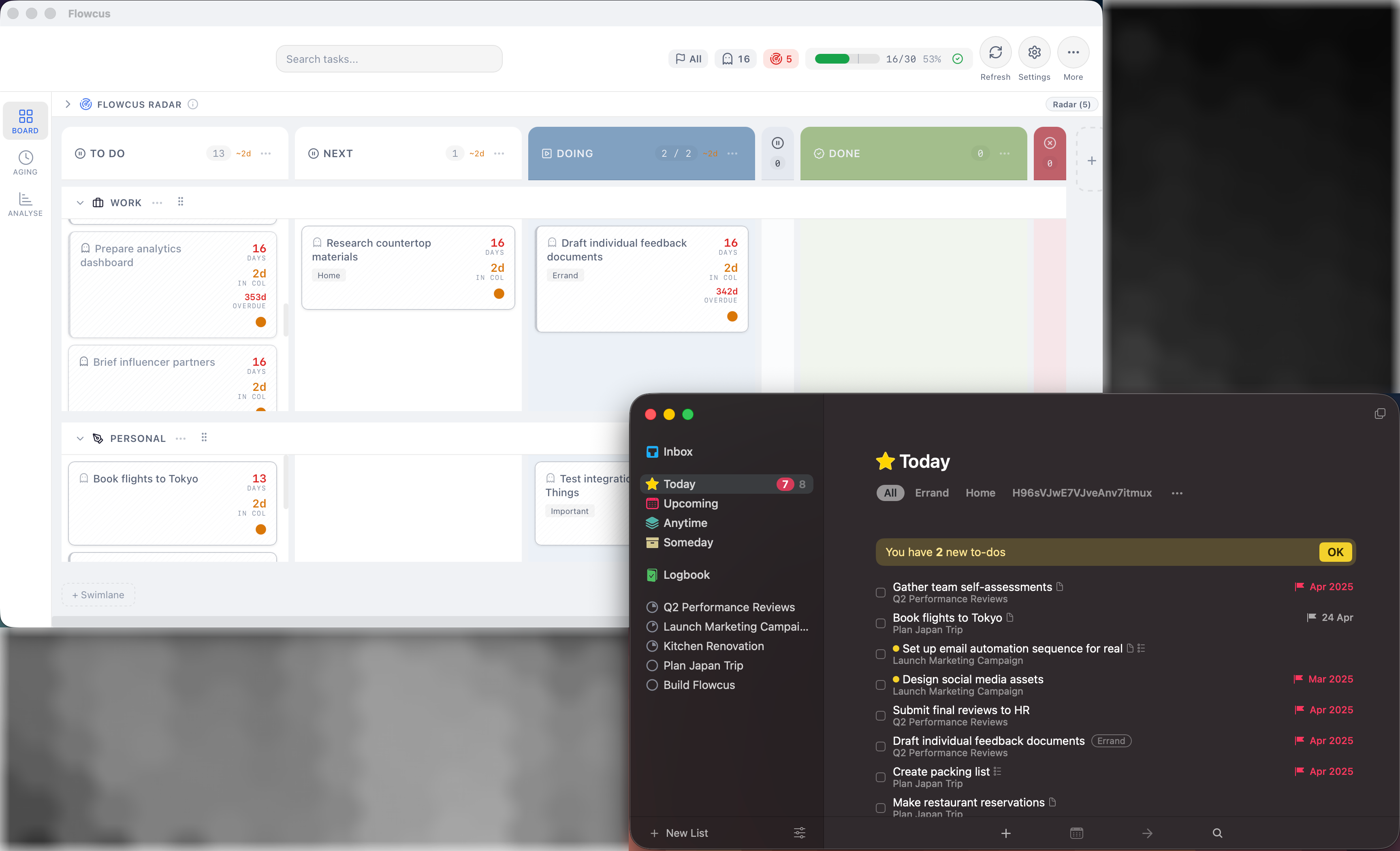
Things has a clean, focused design — but its list-based layout makes it hard to see work in progress across multiple projects. Flowcus adds that missing dimension. Your Things areas can map to a Flowcus swimlane and tasks flow across columns as you work through them. You can optionally map Things tags to board columns, but this isn't required — Flowcus works without any tag setup.
The Today and Upcoming views in Things are excellent for deciding what to work on. The kanban board in Flowcus shows you the bigger picture: how work is distributed and whether anything has been sitting untouched.
Learn more about Things + Flowcus →
Todoist
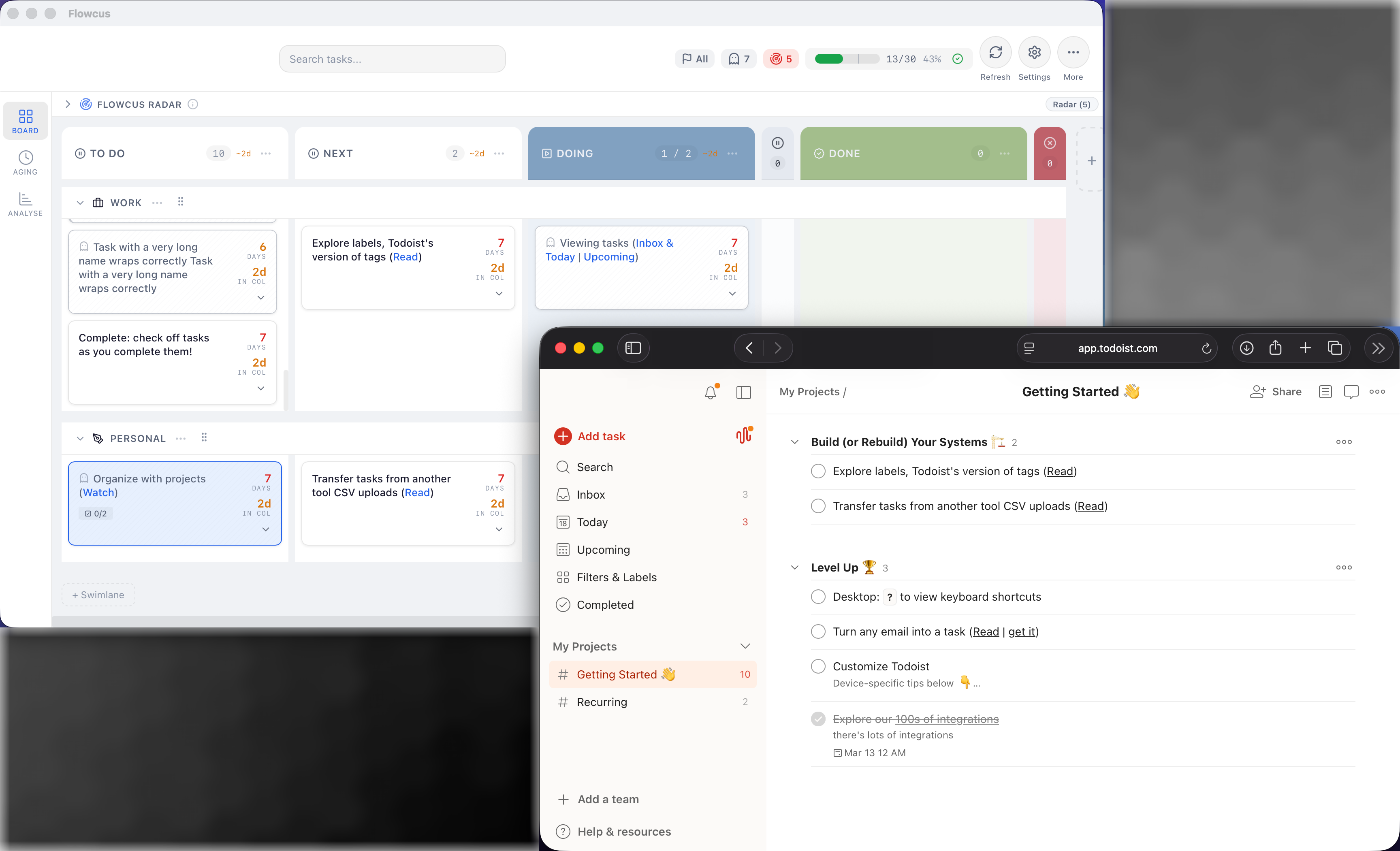
Todoist's board view gives you basic columns, but Flowcus takes it further with swimlanes, richer visualisation and a focus on workflow rather than just status. Your Todoist projects map to swimlanes and labels can optionally map to board columns — though Flowcus works without any label configuration.
If you've been using Todoist's built-in kanban, Flowcus gives you a more powerful version that makes bottlenecks and overcommitment immediately visible.
Learn more about Todoist + Flowcus →
Tips for getting the most from your board
Once your board is set up, these habits will help you get real value from it:
Limit your work in progress (WIP). This is the single most impactful thing you can do. Set a WIP limit on each column (perhaps 3 to 5 tasks in "Doing") and don't pull anything new into that stage until something moves forward. It feels restrictive at first, but it's how you stop spreading yourself thin. Flowcus highlights columns that exceed their WIP limit so you can see overload at a glance.
Review your board daily. Spend two minutes each morning scanning your board. What moved yesterday? What's stuck? What should you focus on today? Flowcus makes this easier with Radar, which analyses your tasks each day and surfaces the 3-5 you should focus on, scored by urgency, momentum and neglect — so you can start your day with confidence instead of scanning your entire board.
Deal with stale tasks. Tasks that you've not made progress on for a while become stale. Flowcus shows you how long a task has been in a column to help you spot stale tasks. Flowcus also uses Ghost Detection, which automatically flags tasks that have gone stale, slipped backward or are vaguely defined. And if a ghost task needs breaking down, Sidekick — Flowcus's built-in AI assistant — can help you refine it into clear, actionable steps.
Keep Done visible. Seeing completed work is motivating — it's proof of progress. In Flowcus, you can choose how many days of completed tasks to show on your board, so your Done column stays useful without becoming overwhelming.
Start simple, evolve later. Resist the urge to create the perfect board on day one. Three columns and your existing projects are enough. Add complexity only when you notice a real need for it.
Start seeing your work clearly
Your task manager already holds everything you need to do. Flowcus gives you the view that's been missing — a kanban board that shows where things are, what's stuck and how much you've really taken on.
Download Flowcus and connect your task manager in minutes. Your tasks stay where they are. You just see them better.