Task Management
Creating Tasks
Creating new tasks from within Flowcus isn't currently supported. Add new tasks in your source task manager and refresh Flowcus to pick them up on the board.
What Flowcus syncs
Synced back to your task manager:
- Task name and notes
- Status changes (moving between columns, completing, dropping)
- Project / parent changes
- Flags
- Tags (OmniFocus and Things)
- Checklist items (Todoist, OmniFocus, TaskPaper — Things doesn't expose checklists via its scripting API)
Not currently synced:
- Board layout, WIP limits, swimlanes — these live in Flowcus, not your task manager
Task Inspector
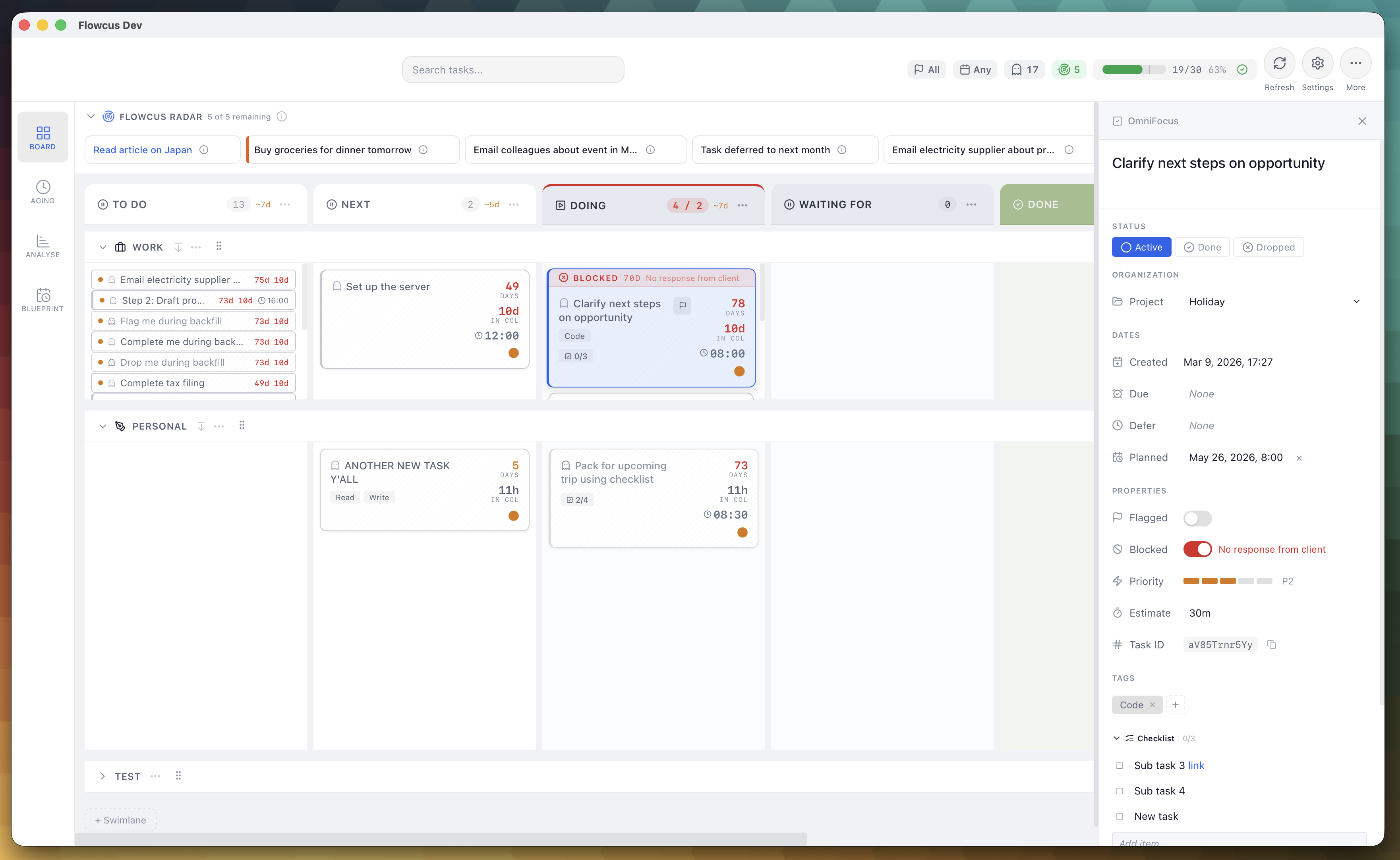
The Task Inspector gives you full context on any task without leaving the board. Click on a task card (or press Enter with a task selected) to open the inspector panel, where you can:
- View and edit task name, notes, and due date
- Add and remove tags via the tag editor
- See the task's full history of state changes
- View which column and swimlane the task belongs to
- Check blocked status and blocking reasons
- Flag or unflag the task
The inspector keeps you in flow by providing everything you need in a side panel rather than forcing you to switch views or applications.
Checklists
Checklists let you track subtasks directly on a task card without leaving the board. If a task has subtasks, they appear as checklist items in Flowcus.
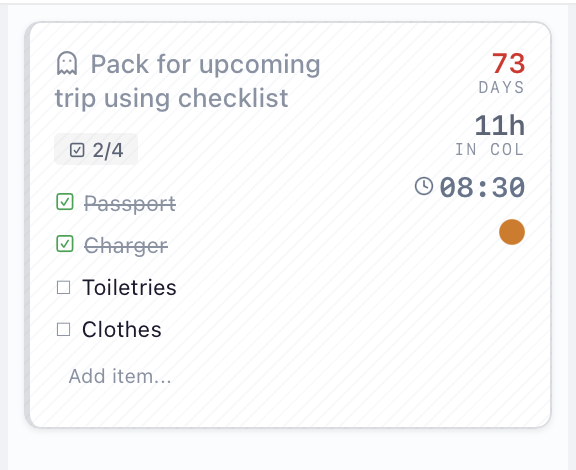
Viewing Checklists
Tasks with subtasks display a checklist badge on the card showing progress (e.g. "2/5"). Click the badge to expand the checklist and see all items.
Managing Checklist Items
From the expanded checklist panel you can:
- Toggle complete/incomplete — Click the checkbox next to an item
- Add a new item — Click the "+" button at the bottom of the checklist
- Rename an item — Click on the item name to edit it inline
- Remove an item — Click the delete button next to an item
Changes sync back to your task manager immediately.
Things to Know
- Only direct children are shown — nested subtasks (grandchildren) are not included
- Dropped subtasks are hidden from the checklist
- OmniFocus: In sequential projects, all subtasks appear in the checklist regardless of availability. When you complete a repeating subtask, OmniFocus assigns it a new ID — refresh the board (
⌘R) to see the updated state - Things: Checklists are not currently available for Things tasks due to a limitation in the Things scripting API
- Todoist: Subtasks in Todoist appear as checklist items and sync both ways
- TaskPaper: Child items within a TaskPaper project appear as checklist items
Moving Tasks Between Columns
Moving tasks between columns updates their status in your workflow:
Using Drag and Drop
- Click and hold on a task card
- Drag it to the desired column
- Release to drop the task in the new column
Using Keyboard
- Select a task by clicking on it
- Press the
Spacekey (or⌘-]) to move it to the next column - Press
⌘-[to move it to the previous column
When a task is moved to a completed or dropped column, it's automatically marked as completed or dropped in the source.
Completing Tasks
You can complete tasks either by:
- Dragging a task to a completed column
- Selecting a task and pressing
⌘⇧↩(Command+Shift+Return)
Blocking and Unblocking Tasks
When you're waiting on something external before you can continue a task, you can block it:
Blocking a Task
- Right-click on a task and select "Block Task" or press
b - Enter a reason for blocking (optional)
- Click "Block"
Blocked tasks display a visual indicator and can include a note explaining why they're blocked.
Unblocking a Task
- Right-click on a blocked task or press
b - Select "Unblock Task"
Tags and Flags
Flowcus supports multiple tags per task, letting you slice your work across different dimensions that a single category never could.
- Tags appear on task cards as coloured badges
- Add and remove tags directly from the Task Inspector — changes sync back to the source task manager automatically
- Use tag filtering (
⌘⇧T) to show only tasks with specific tags - Flagged tasks display a flag icon and have a highlighted border
- Toggle flags via the context menu or by pressing
⇧⌘Lwith a task selected
Rule-Based Assignments
Flowcus can automatically place tasks into the right columns and swimlanes, so new tasks land in the right spot without you having to drag them. There are two independent settings — one for columns, one for swimlanes.
Route tasks to columns based on tags
Map your task manager's tags to specific columns. For example, a next tag could route tasks to "To Do" and an in-progress tag to "Doing".
- Open Settings (
⌘,) - Go to Columns
- Set up your mappings under "Route tasks to columns based on tags"
Map dimensions to swimlanes
Map your task manager's structure (OmniFocus folders, Things areas, Todoist projects) to swimlanes, so each area of work gets its own row on the board.
- Open Settings (
⌘,) - Go to Swimlanes
- Set up your mappings under "Map dimensions to swimlanes"
Once configured, new tasks arriving on the board are placed automatically — keeping your board organised without manual effort.