Filtering Tasks
The filter bar above the board hosts every board-wide filter. Each filter cycles through its states with a click (or its keyboard shortcut). The little × that appears on an active filter resets just that one — leaving the others in place.
Active filters AND-combine. A task only shows on the board if it passes every active filter.
Tag filter
Show only tasks carrying specific tags:
- Open the tag filter with
⌘⇧T(or click the Tags button) - Tick one or more tags to show only tasks that have them
- Use the "Untagged" option to show tasks without any tags
- Click the × on the Tags button to clear
Flag filter
Cycle the Flag button (or press ⇧⌘F) to filter by flag state:
- Any (default) — all tasks
- Flagged only — only tasks flagged in your task manager
- Unflagged only — only tasks that aren't flagged
The button colour reflects the current state. Click the × on the button to return to Any without cycling through.
Planned filter
When Blueprint is enabled, a Planned filter appears in the filter bar. Cycle it (or press ⇧⌘B) to slice the board by today's plan:
- Any (default) — all tasks
- Planned only — only tasks that have a block on today's Blueprint plan
- Unplanned only — only tasks that don't
"Planned" tracks the calendar day, so when midnight rolls over the filter automatically reflects the new day's plan.
Useful pairings:
- Planned only + your Doing column gives a quick "what am I actually doing today" view
- Unplanned only + Flagged only surfaces work you've marked important but haven't yet committed to a time block
- Both states clear with the × on the button (or by cycling back to Any)
Lenses
Where the filters above slice the board temporarily, a Lens is a saved, named view — like Work or Personal — that controls which tasks appear based on the groupings and labels from your task manager. Switch between Lenses to instantly reshape the board around whatever you're focused on right now.
Switch the active Lens from the toolbar, the command palette, or with ⌘⇧L.

Managing Lenses
Open the Manage Lenses window to create, rename, duplicate, reorder, and delete your Lenses.
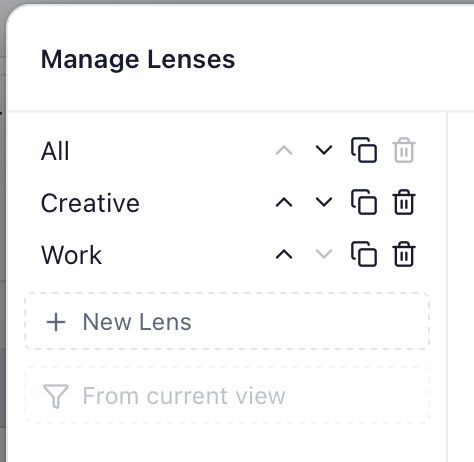
You can also capture your current view as a Lens in one step — from the command palette or the Manage Lenses window. This takes your active tag filters, names the new Lens after them, and drops you straight into renaming it.
The "All" Lens
Every board has a built-in All Lens that always shows everything, including folders and tags you add later. It's protected from being accidentally narrowed or deleted, so you always have a way back to the full board. When you want a custom starting point, duplicate it and adjust the copy.
If a Lens (or another active filter) is scoping every task out of view, the empty board now tells you exactly why it's empty and what's hiding your tasks.