Blueprint
Blueprint is Flowcus's day planner — a time-blocked view of a single day where you can drop tasks into the times you intend to work on them, with your calendar events alongside so you're planning around the commitments you already have. Switch to Blueprint from the view switcher (left hand bar) or press ⌃4. The Blueprint button in the view switcher shows a badge with how many blocks you've planned for today, so you can see at a glance whether today has a plan yet.
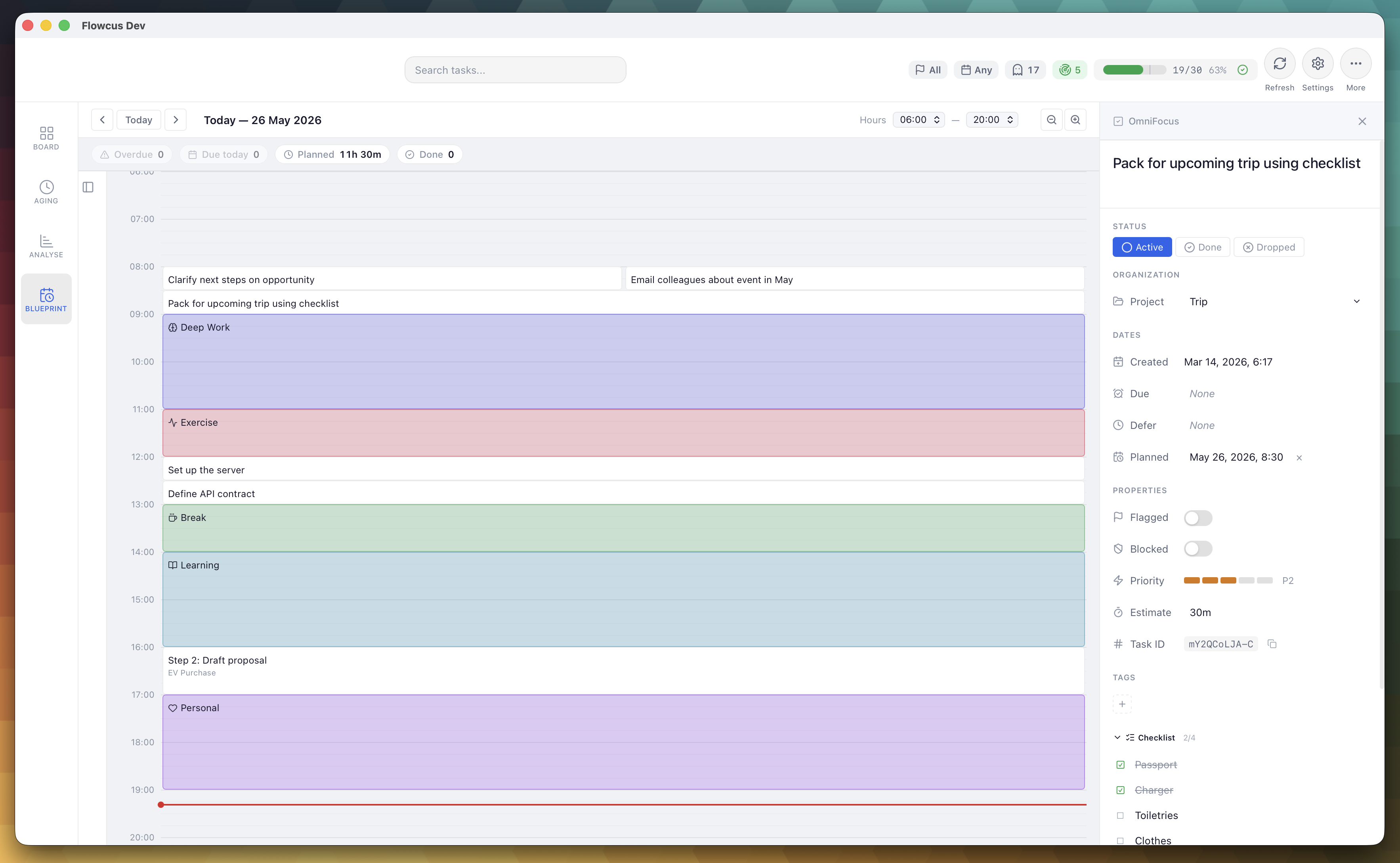
Anatomy of the view
Blueprint has five parts:
- Date navigation — move between days; "Today" returns to the current date.
- Today summary bar — four at-a-glance chips for today: Overdue, Due today, Planned (sum of today's block durations) and Done (tasks completed today). The Overdue and Due-today chips are clickable and switch back to the board view.
- Time grid — a vertical timeline of your working hours. Drag to create activity blocks (e.g. "Deep work", "Meetings", "Lunch"), drop tasks from the sidebar onto a time slot to schedule them, and drag block edges to resize.
- Calendar lane — a resizable lane beside the time grid showing the calendar events for the day you're viewing, colour-coded per calendar. Drag its edge to give it more or less room. See Calendar events below for how to connect your calendars.
- Task sidebar (left) — your active and queued tasks, filterable by text and duration.
The first time you open a day with nothing planned on it, Blueprint shows a short empty state explaining what the view is for and how to get started — drag a task in or draw a block and it gets out of your way.
Creating and editing blocks
Two kinds of block live on the grid:
- Activity blocks — generic time blocks you create directly on the grid by clicking and dragging. Use presets (Deep work, Meeting, Break, Admin, Exercise, Learning, Personal, Flow) for instant colour-coding via the right-click context menu.
- Task blocks — created by dragging a task from the sidebar onto a time slot, or by choosing "Schedule in Blueprint" from the board (see Schedule from the board). The block carries the task's identity, so completing the task marks the block as done.
From a block you can:
- Move — click and drag the middle of the block to slide it to a new start time.
- Resize — drag the top or bottom edge to extend or shorten it (15-minute snap).
- Rename — double-click an activity block to edit its label.
- Delete — right-click → "Remove from plan".
- Open task inspector (task blocks only) — right-click → "Open in Inspector", or left-click the block. The Inspector panel slides in showing the underlying task, and
⌘Itoggles it.
Schedule from the board
You don't have to be in Blueprint to plan a task. Right-click any task card on the board — or use the same action in the Task Inspector — and choose Schedule in Blueprint. Flowcus drops the task into the next free 30-minute slot today — no need to find the gap yourself.
Once a task has a block in today's Blueprint, the menu item reads "Scheduled in Blueprint today" and is disabled — so you can't accidentally plan the same task twice. Open Blueprint to move or resize the block if the slot Flowcus picked isn't quite right.
Getting into the habit
Cards on the board that have an estimate but no time slot show a gentle "Schedule in Blueprint" nudge — a reminder that you know how long the task will take, so it may as well have a home in your day. Dismiss it if you'd rather not be prompted — dismissed guidance is listed under Help › Discover Features… if you want it back.
Calendar events
Blueprint can show your calendar events beside the time grid, so the plan you make in Flowcus fits around the meetings and appointments already in your day. Calendar access is read-only — Flowcus never creates, changes or deletes events in any calendar.
Connecting a calendar
Open Settings › Calendar and add an account. There are two kinds:
- macOS Calendar — reads whatever is already in the Calendar app on your Mac, via Apple's EventKit. That covers iCloud, Google, Exchange and any other account you've added in Calendar.app, so this is usually the simplest route. macOS will ask once whether Flowcus may access your calendars.
- Google Calendar — sign in with Google and Flowcus reads your calendars directly with read-only (
calendar.readonly) access. You can disconnect at any time from Settings › Calendar, which also removes the stored tokens from your Keychain.
Removing an account in Settings hides its calendars from Blueprint. For macOS Calendar, the permission you granted stays in place in System Settings — see Calendar access if Flowcus reports it can't read your events.
Reading the calendar lane
- Events for the day you're viewing appear in the calendar lane, colour-coded per calendar so you can tell work from personal at a glance.
- An event that lives on several calendars is shown once, with an "on N calendars" note rather than a stack of duplicates.
- Drag the edge of the lane to resize it — give it room on a busy day, or keep it narrow when you just want the grid.
Choosing which calendars to show
The Calendars button in the Blueprint toolbar opens a popover listing every connected account and its calendars. Tick and untick individual calendars — or a whole account — to show or hide them while you plan.
Keeping events up to date
Events refresh automatically in the background — roughly every five minutes, and again when you come back to Flowcus after being away — so the lane reflects anything added or moved in your calendar without you having to do anything.
For details of what Flowcus stores and what it doesn't, see the Privacy Policy.
Task sidebar and duration filter
The sidebar shows tasks from your active and queue columns, sorted with active tasks first. Use it to drag tasks into the time grid.
- Search — filter by task name or project.
- Duration filter chips — four chips just below the search input let you narrow the list to tasks by estimated time: ≤15m, 15–30m, 30m+ and No estimate. Selecting more than one chip ORs them together; selecting none shows everything. The chips combine with text search (AND).
- Left-click or right-click a sidebar item to open it in the Inspector. The Inspector swaps to the new task when it's already open, so you can scrub through them.
- Tasks already scheduled for the visible day show a clock badge with their start time and aren't draggable a second time.
OmniFocus sync: planned date and estimated time
When you schedule an OmniFocus task on the Blueprint grid, Flowcus mirrors that decision back into OmniFocus using two OmniFocus 4 fields:
- Planned date ← block start time. Distinct from defer (availability) and due (deadline) — represents user intent: "I plan to work on this then." Visible in OmniFocus 4's Inspector and surfaces of Forecast.
- Estimated minutes ← block duration. Visible in OmniFocus's Inspector and aggregated by OmniFocus's Review.
Sync rules:
- Dropping a task into a block sets both fields.
- Resizing a block re-syncs the estimate.
- Moving a block re-syncs the planned date (and the estimate, since both edges may move).
- Deleting the block clears the planned date but leaves the estimate intact — the estimate is still a valid property of the task even when unscheduled.
- Activity blocks (no task) sync nothing.
These fields are read back into Flowcus too — the Inspector's Planned and Estimate rows always reflect the latest value in OmniFocus.
What about Things, Todoist, TaskPaper?
Things, Todoist and TaskPaper don't expose equivalent planned-date or estimated-minutes fields via their scripting interfaces, so Blueprint scheduling for those sources is local to Flowcus only. The Inspector hides the Planned and Estimate rows for tasks from those sources.